Inviting Members
This documentation is actively maintained. Features described here may change as the platform evolves. Last reviewed: February 2, 2026.
Only Administrators can invite new members to the platform. When you invite someone, they receive an email with a link to create their account.
Your Role on This Page
- Admin
- Department Lead
- Team Lead
- Member
As an Admin, you can invite new users to the platform and assign them to departments and teams. You have full control over user invitations and can set their role, department, and team assignments.
As a Department Lead, you cannot invite new members. Only administrators can send invitations to new users.
As a Team Lead, you cannot invite new members. Only administrators can send invitations to new users.
As a Member, you cannot invite new members. Only administrators can send invitations to new users.
How to Invite a New Member
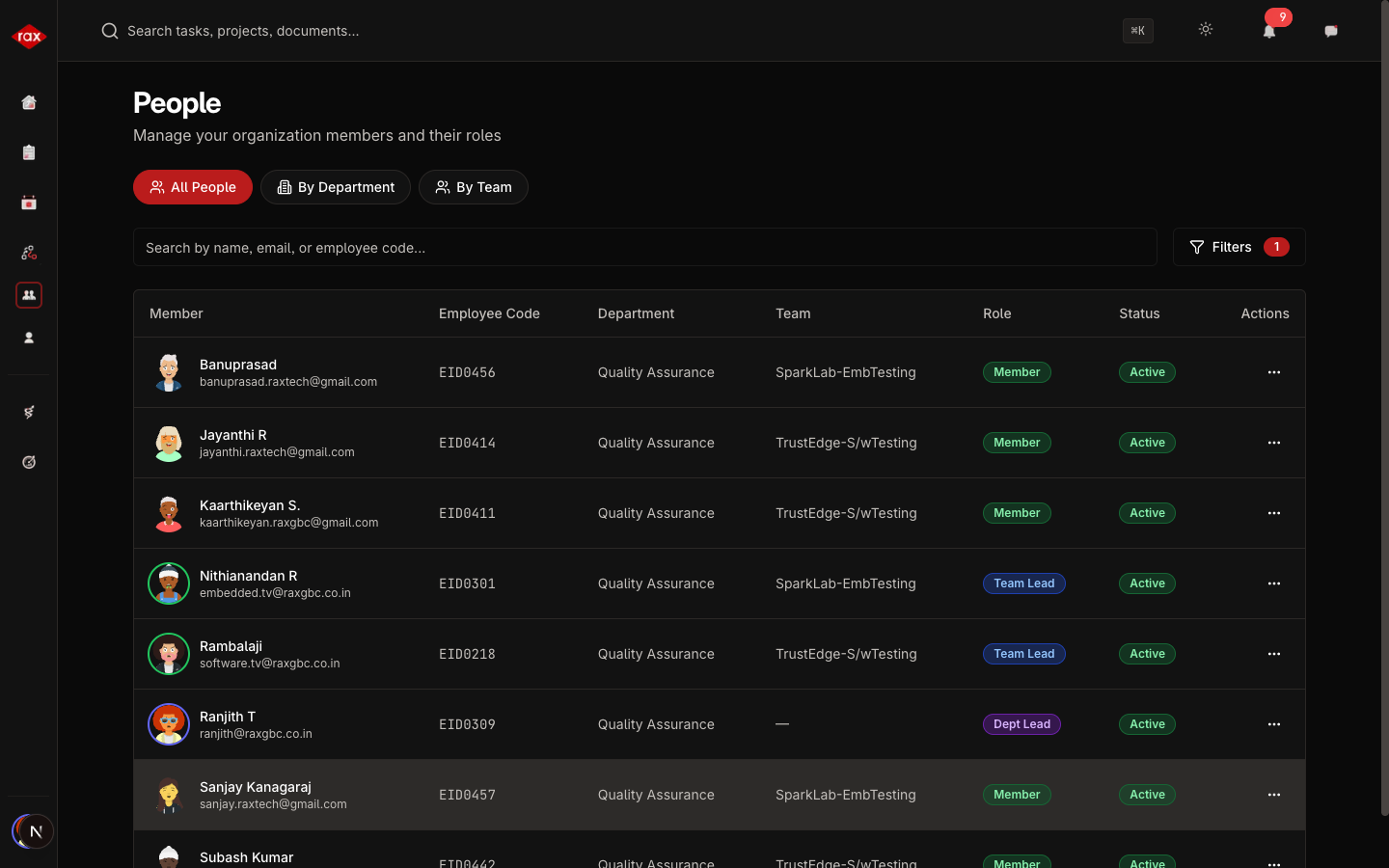
- Go to People in the sidebar
- Click the Invite Member button
- Fill in the invitation details:
| Field | Description |
|---|---|
| The person's work email address | |
| Role | The role to assign (Admin, Department Lead, Team Lead, or Member) |
| Department | Which department they'll join |
| Team | Which team they'll be part of |
- Click Send Invitation
What Happens Next
- The invited person receives an email invitation
- They click the link and are taken to the registration page
- They fill in their name, set a password, and complete registration
- They appear on the People page with an Active status once registered
Before They Register
Invited users who haven't registered yet show as Invited in the People list. You can:
- Resend the invitation — If the original email was lost or expired
- View their pending invitation — Check which role/team they were invited to
Make sure you use the correct email address when inviting. The invitation can only be accepted from the email it was sent to.
Changing a Member's Role or Team
After someone has joined, you can update their assignment:
- Go to People
- Find the person and click to view their profile
- Click Edit
- Change their role, department, or team
- Click Save
Changes take effect immediately — the person will see updated navigation and permissions on their next page load.