Projects
This documentation is actively maintained. Features described here may change as the platform evolves. Last reviewed: February 2025.
Projects in Development represent major work initiatives. They contain tasks, milestones, documents, and team allocations. Only administrators can create projects.
Your Role on This Page
- Admin
- Department Lead
- Team Lead
- Member
As an Admin, you can view and manage all projects across the organization. You can create new projects, edit existing ones, and assign teams and budgets.
As a Department Lead, you can view projects assigned to your department. You can see project details, milestones, and documents for projects involving your department.
As a Team Lead, you can view projects your team is assigned to. You can access project documents, milestones, and analytics for your team's projects.
As a Member, you can view projects you're involved in. You can see project details, documents, and milestones for projects where you're assigned to tasks.
Project Types
| Type | Description |
|---|---|
| Project | An active, approved project with allocated budget and teams |
| Proposal | A pre-approval project proposal that may become a project |
| Draft | A project still being planned — saved automatically as you work |
Viewing Projects
- Click Projects in the sidebar
- Choose a view mode:
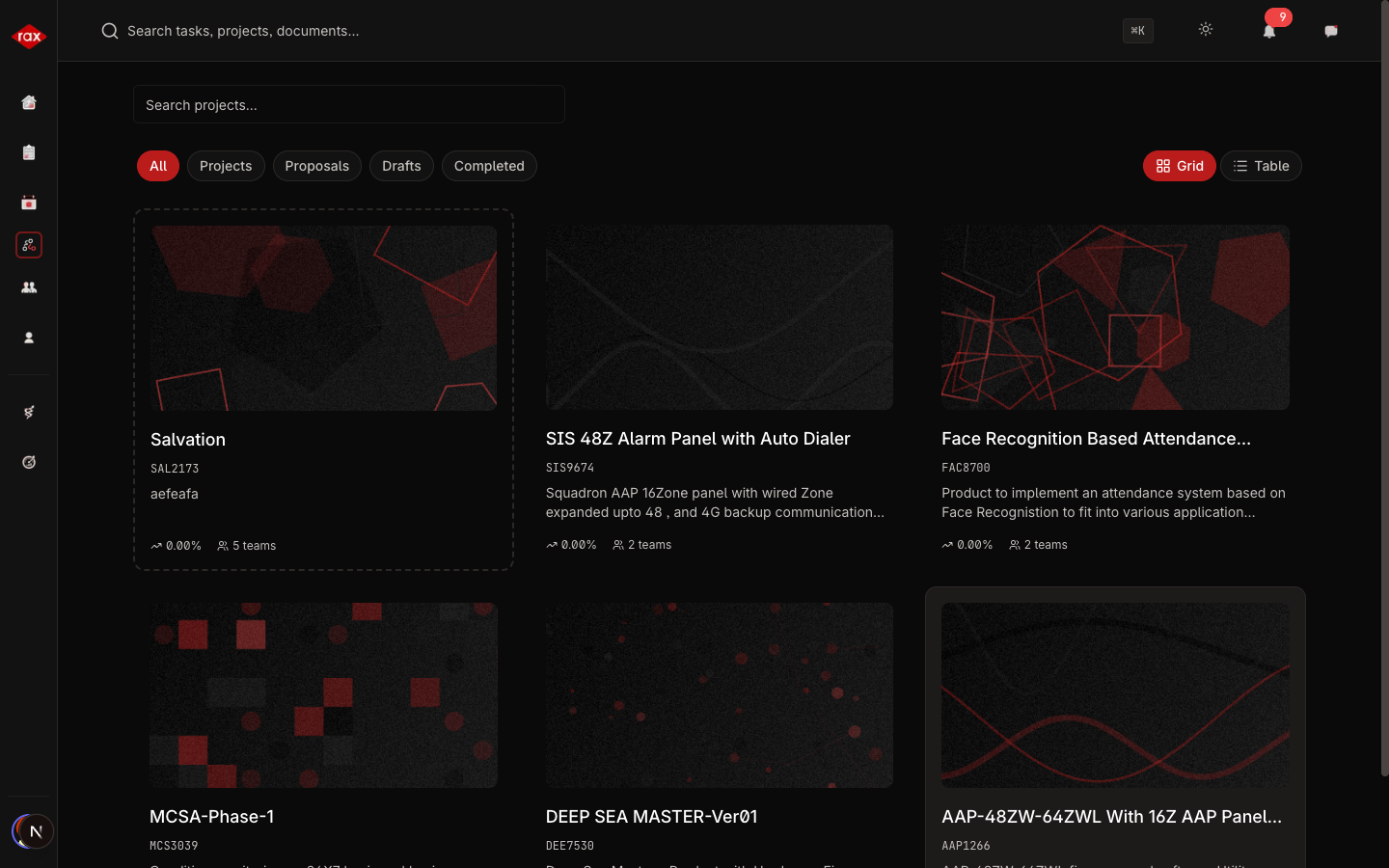
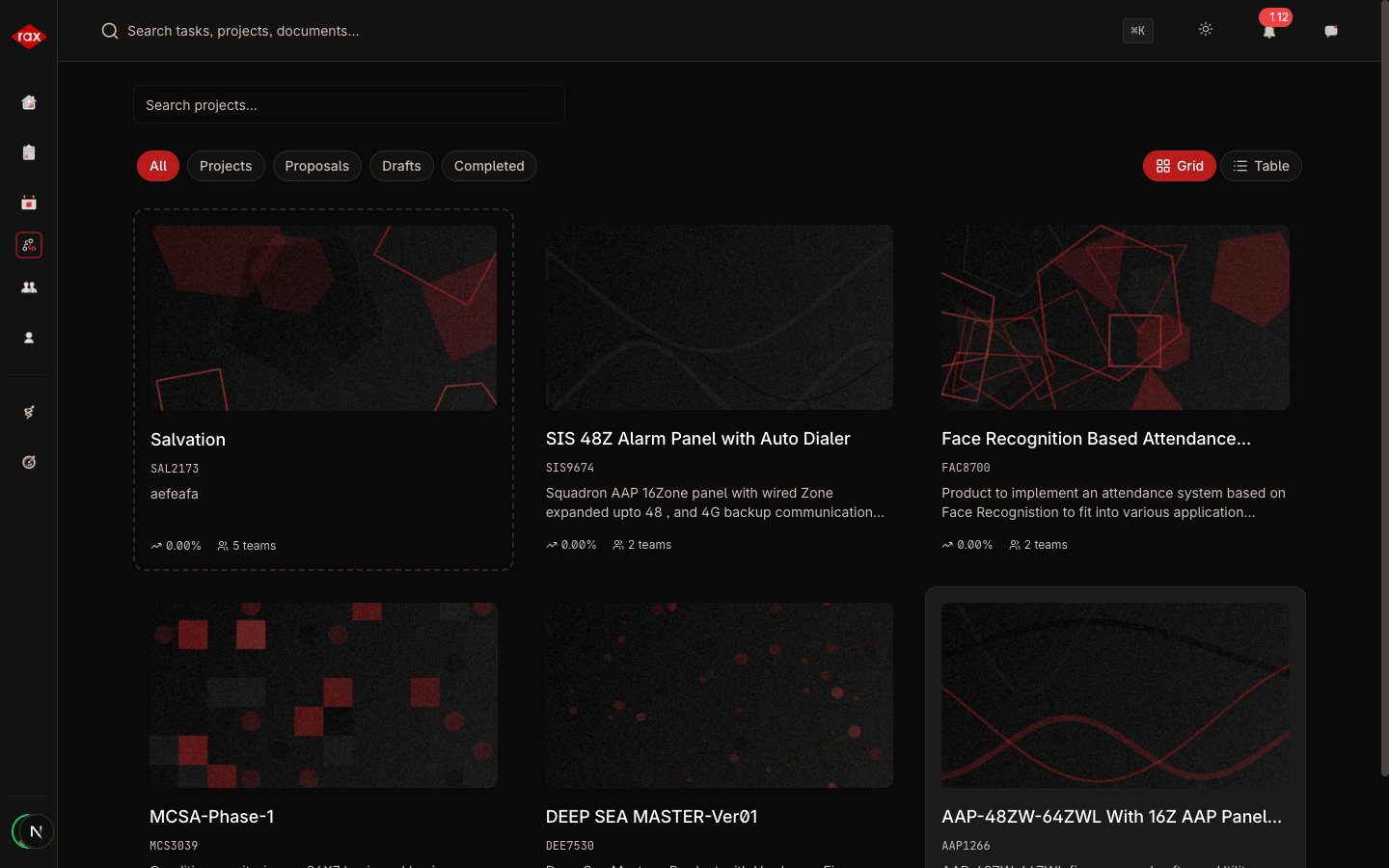
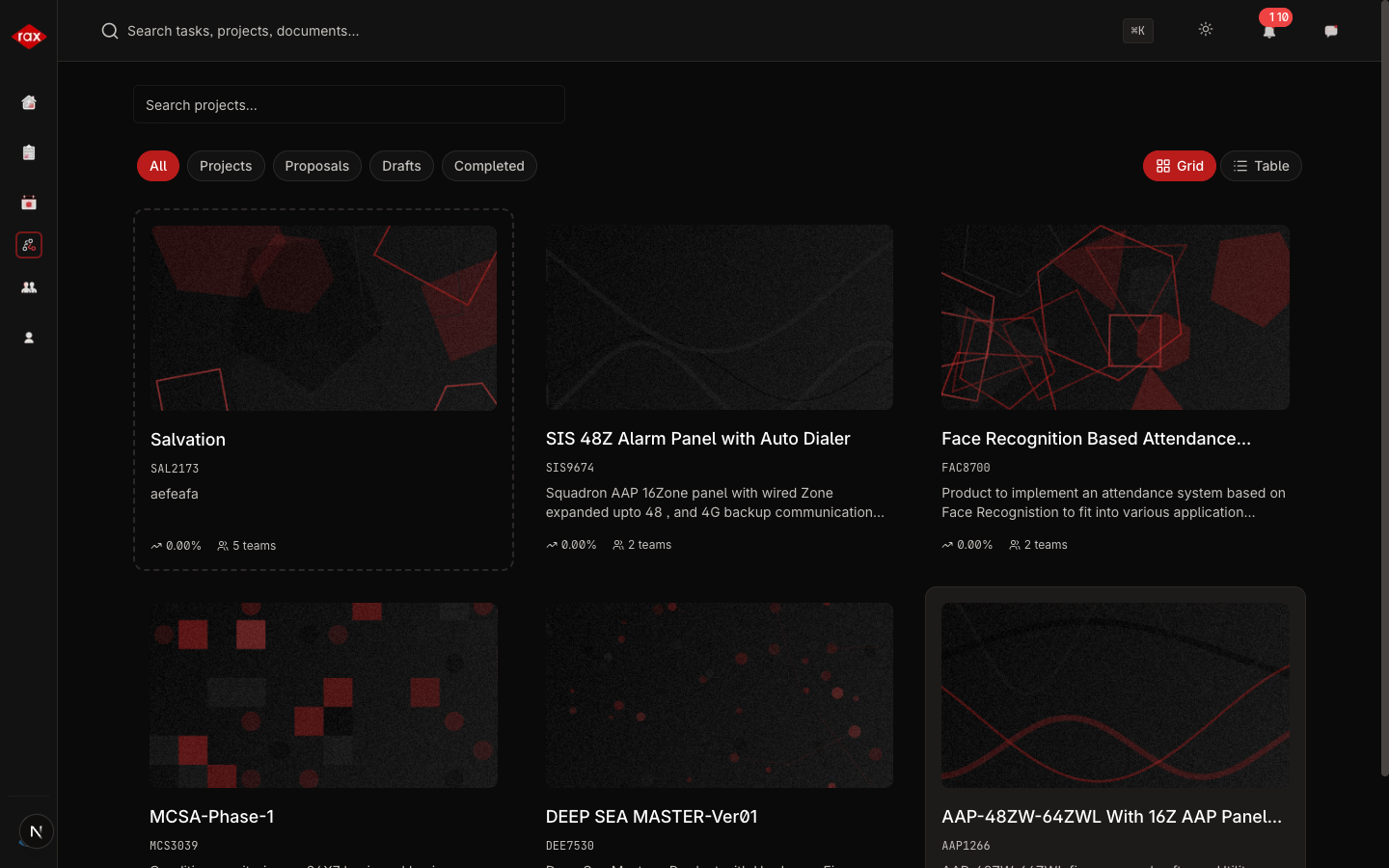
- Grid View — Visual cards showing project summaries
- Table View — Detailed list with sortable columns
- Filter projects by status:
- All — Active projects only
- Projects — Approved projects
- Proposals — Pending proposals
- Drafts — Work-in-progress plans
- Completed — Finished projects
- Department Lead
- Team Lead
- Member
Project Cards
Each project card shows:
- Project name and code
- Status indicator
- Progress percentage
- Start and end dates
- Team allocations
- Budget summary
Project Detail View
Click any project to see its full details:
| Tab/Section | What It Shows |
|---|---|
| Overview | Project description, status, key metrics |
| Milestones | Timeline of project milestones and their status |
| Teams & Budget | Team allocations and budget distribution |
| Documents | Uploaded project files and documents |
| Analytics | Project-specific performance data |
| Events | Calendar events related to this project |
What You Can See
Your view of projects depends on your role:
- Admin — All projects across the organization
- Department Lead — Projects involving your department
- Team Lead — Projects your team is assigned to
- Member — Only projects you're directly assigned to