Task Management
This documentation is actively maintained. Features described here may change as the platform evolves. Last reviewed: February 2025.
Tasks are the core building blocks of work in Development. Every piece of work — from a feature implementation to a bug fix — is tracked as a task.
Your Role on This Page
- Admin
- Department Lead
- Team Lead
- Member
As an Admin, you can view all tasks across all projects and teams. You have full visibility into every task in the organization, can create tasks in any project, and assign to any team.
As a Department Lead, you can view tasks in your department's projects. You can see all tasks assigned to teams within your department and monitor their progress.
As a Team Lead, you can view and manage tasks for your team. You can create tasks, assign them to team members, and monitor their completion.
As a Member, you can view tasks assigned to you. You can update task status, log time, add comments, and upload attachments for your assigned tasks.
Task Types
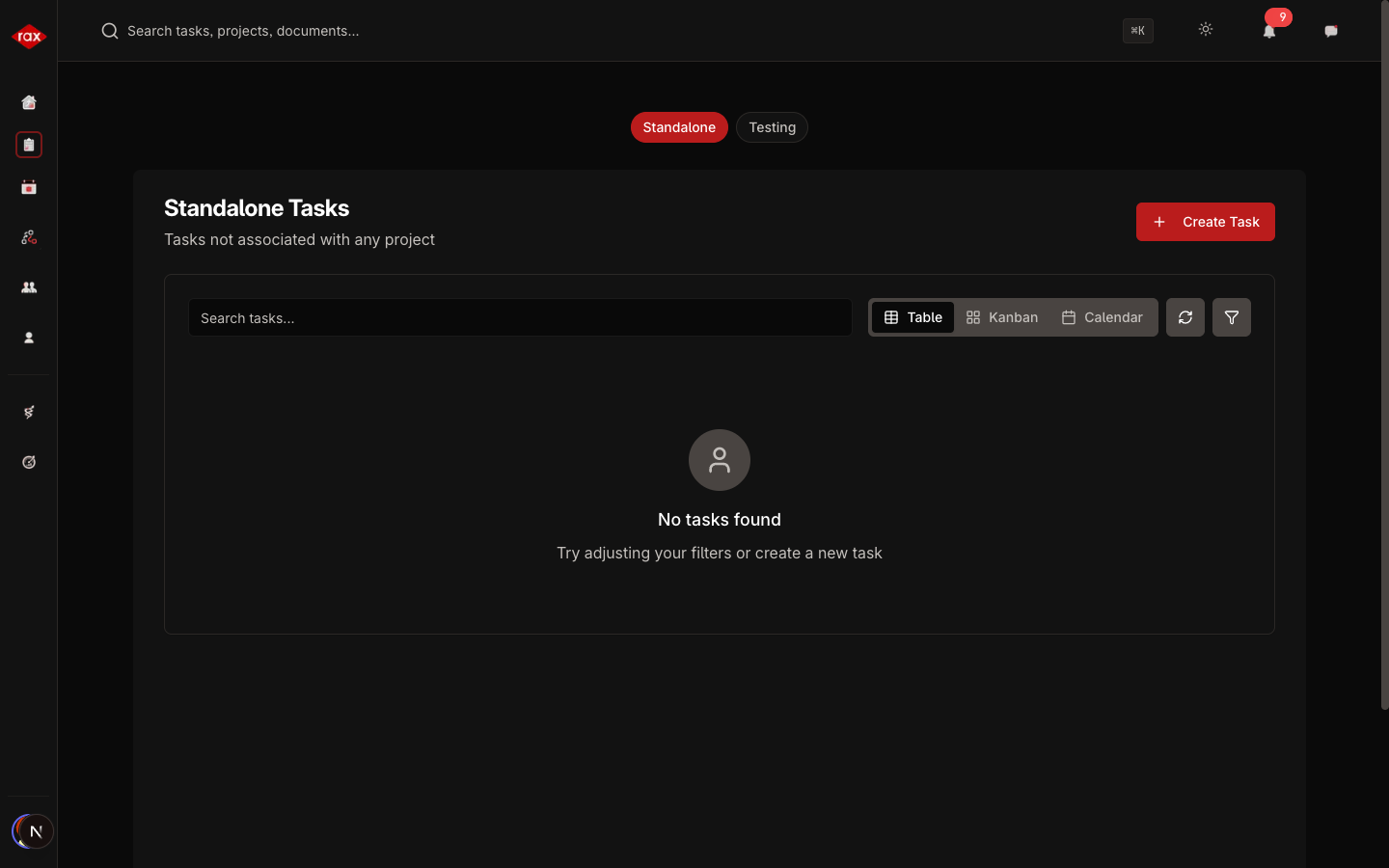
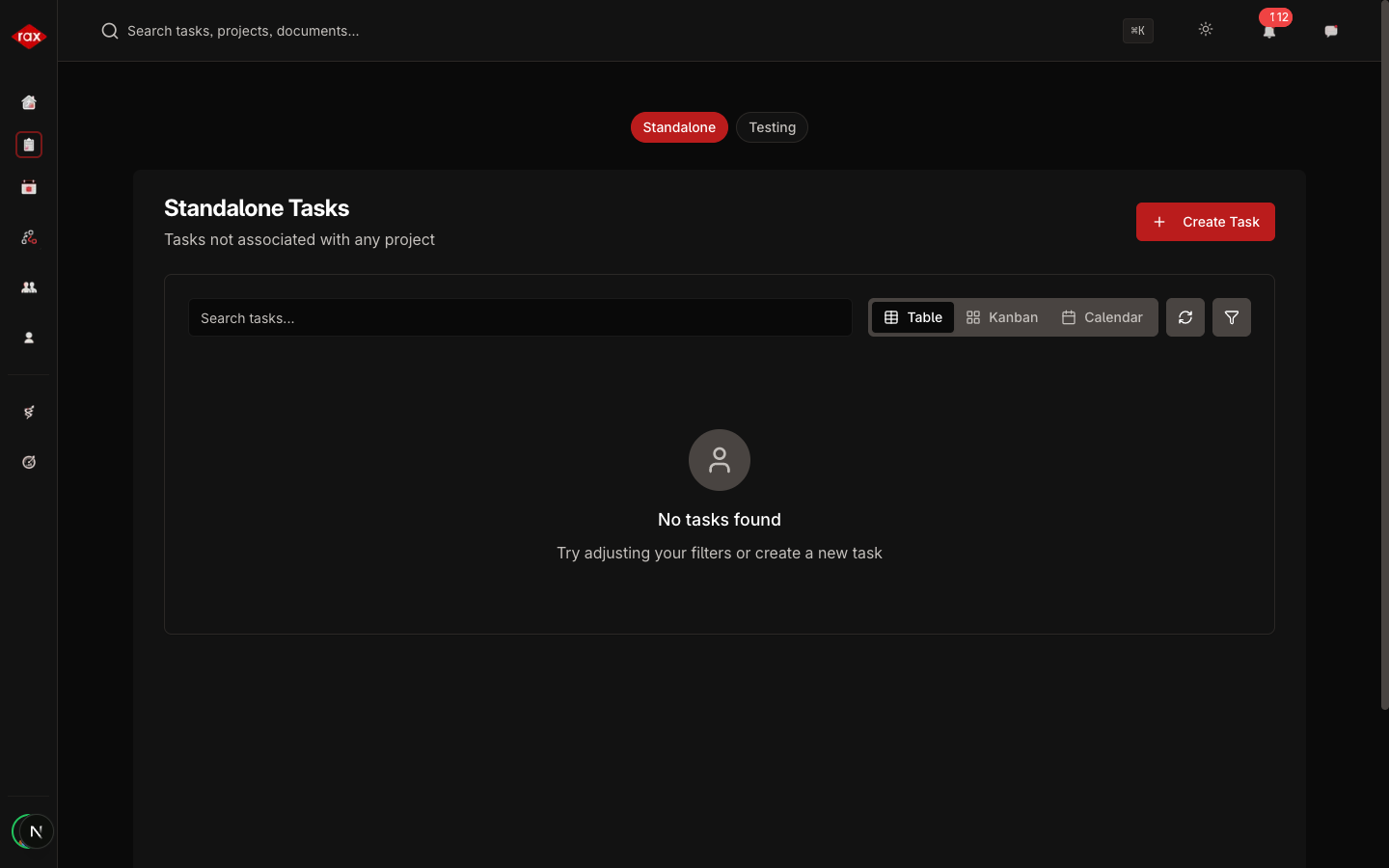
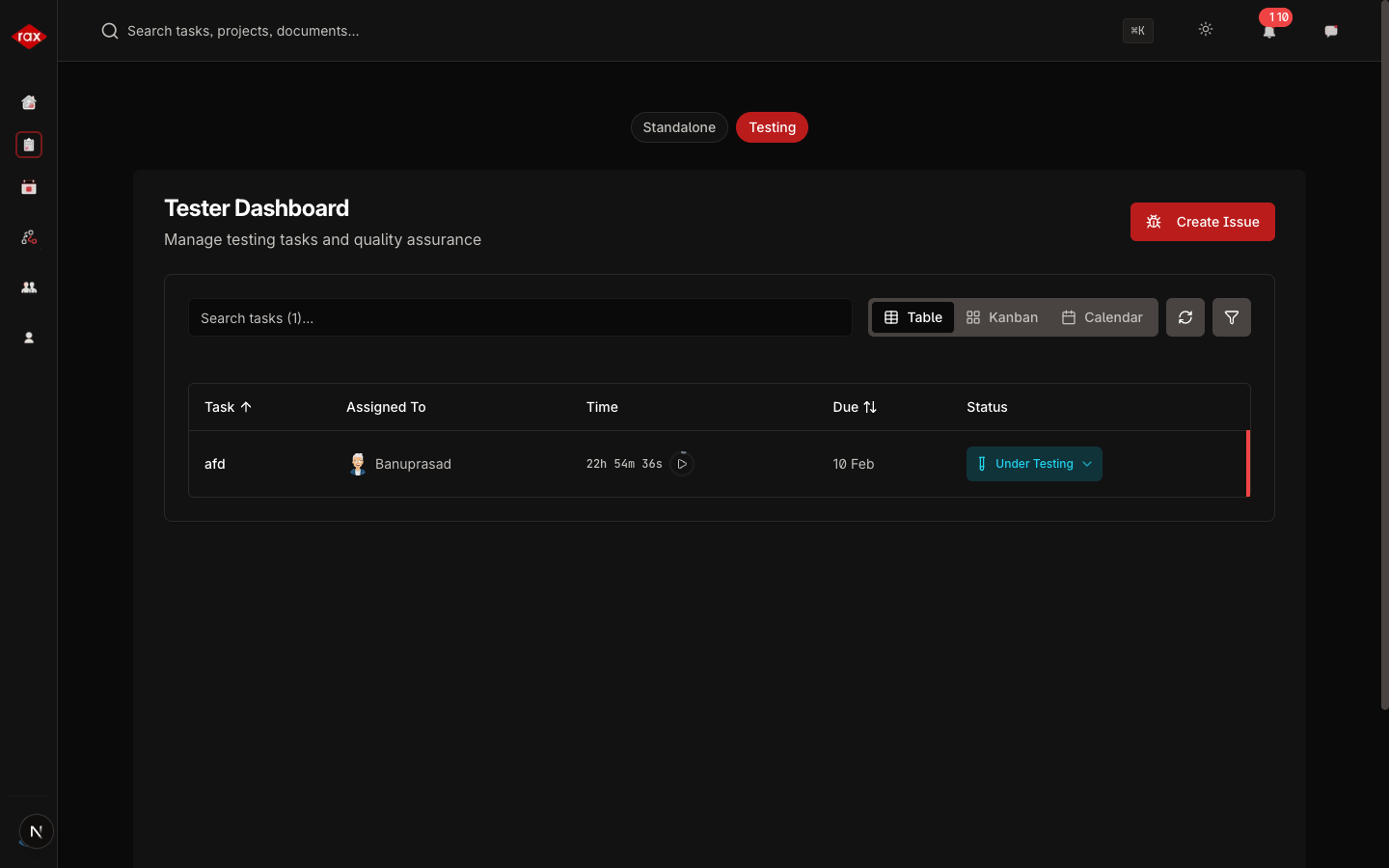
Tasks are organized into tabs based on their type. Which tabs you see depends on your department:
| Tab | Who Sees It | Description |
|---|---|---|
| Standalone | Everyone | Independent tasks not tied to any project |
| Embedded | Embedded department | Hardware and firmware development tasks |
| Software | Software department | Software development tasks |
| Testing | Testing department | QA and testing tasks |
Task Statuses
Every task moves through a series of statuses:
| Status | Meaning |
|---|---|
| Pending | Task has been created but work hasn't started |
| In Progress | Someone is actively working on this task |
| Review | Work is done and waiting for lead/admin review |
| Testing | Task has been sent to the testing team |
| Completed | Task is finished and approved |
| Cancelled | Task was cancelled and won't be completed |
Navigating Tasks
- Click Tasks in the sidebar
- Choose a tab (Standalone, Embedded, Software, or Testing)
- Use the project filter to narrow down tasks by project
- Click any task to open its detail view
- Department Lead
- Team Lead
- Member
Task Detail View
When you open a task, you'll see:
- Task information — Title, description, priority, status, dates
- Assignees — Developer and tester assigned to the task
- Time tracking — Timer for logging work hours
- Comments — Discussion thread with team members
- Attachments — Files uploaded to the task
- Task hierarchy — Parent/child task relationships
- Activity log — History of all changes made to the task
Task Priority Levels
| Priority | When to Use |
|---|---|
| Critical | Blocking other work, needs immediate attention |
| High | Important and should be done soon |
| Medium | Normal priority, part of regular workflow |
| Low | Nice to have, can wait |
You can open a specific task directly from a link — tasks support URL-based navigation. Share the task URL with a colleague to point them to the right task.