Task Workflows
Work in Progress
This documentation is actively maintained. Features described here may change as the platform evolves. Last reviewed: February 2, 2026.
Tasks in Development follow structured workflows depending on the type of work. These workflows ensure proper review and quality checks before a task is marked as complete.
Standard Development Workflow
Pending → In Progress → Review → Testing → Completed
- Pending — Task is created and waiting to be started
- In Progress — Developer picks up the task and begins working
- Review — Developer submits work for lead review
- Testing — After review approval, task moves to the tester
- Completed — Tester verifies and the task is done
Developer View
When a task is assigned to you as a developer:
- You'll see the task on your dashboard under My Assigned Tasks
- Click the task to open the detail view
- Use the Start Timer to track your working hours
- Update the status to In Progress when you begin
- When done, submit for Review
- If the reviewer requests changes, the task returns to In Progress
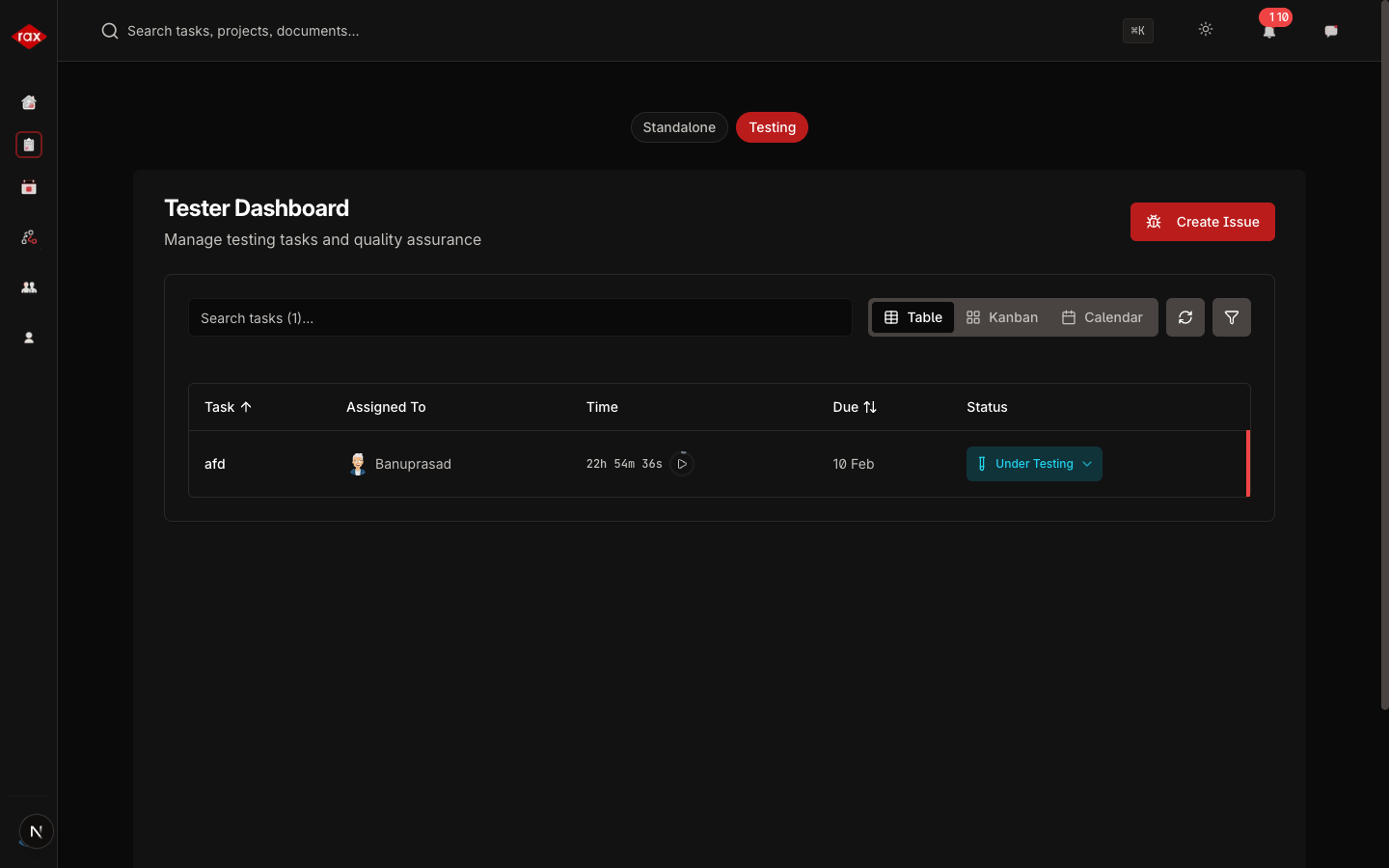
Tester View
When a task reaches the testing phase:
- You'll see it in the Testing tab
- Open the task and review the work
- If everything passes, mark as Completed
- If you find issues, you can Raise an Issue which sends it back for fixes
Lead/Admin Review
Leads and administrators review tasks submitted for review:
- Check the Dashboard for tasks pending review
- Open the task and examine the work
- Approve to move it to testing, or Request Changes to send it back
Time Tracking
Every task has a built-in timer:
- Click Start Timer to begin tracking time
- The timer runs even if you navigate away
- Click Stop Timer when you're done
- Time logs are visible in the task detail and contribute to KPI calculations
warning
Remember to stop your timer when you take breaks or switch to another task. Accurate time tracking helps generate reliable KPI reports.
Task Comments
Use comments to communicate about a task:
- Open the task detail view
- Scroll to the Comments section
- Type your message and click Send
- All team members with access to the task can see and reply to comments
Comments are useful for asking questions, providing updates, or documenting decisions.