Creating Tasks
This documentation is actively maintained. Features described here may change as the platform evolves. Last reviewed: February 2, 2026.
Only Administrators, Department Leads, and Team Leads can create tasks. Regular members work on tasks assigned to them.
Your Role on This Page
- Admin
- Department Lead
- Team Lead
- Member
As an Admin, you can create tasks in any project and assign them to any team. You have full control over task creation across the entire organization.
As a Department Lead, you can create tasks in department projects. You can assign tasks to teams within your department.
As a Team Lead, you can create tasks and standalone tasks, and assign them to your team members. You manage the task backlog for your team.
As a Member, you cannot create tasks. You can only work on tasks assigned to you by leads or administrators.
How to Create a Task
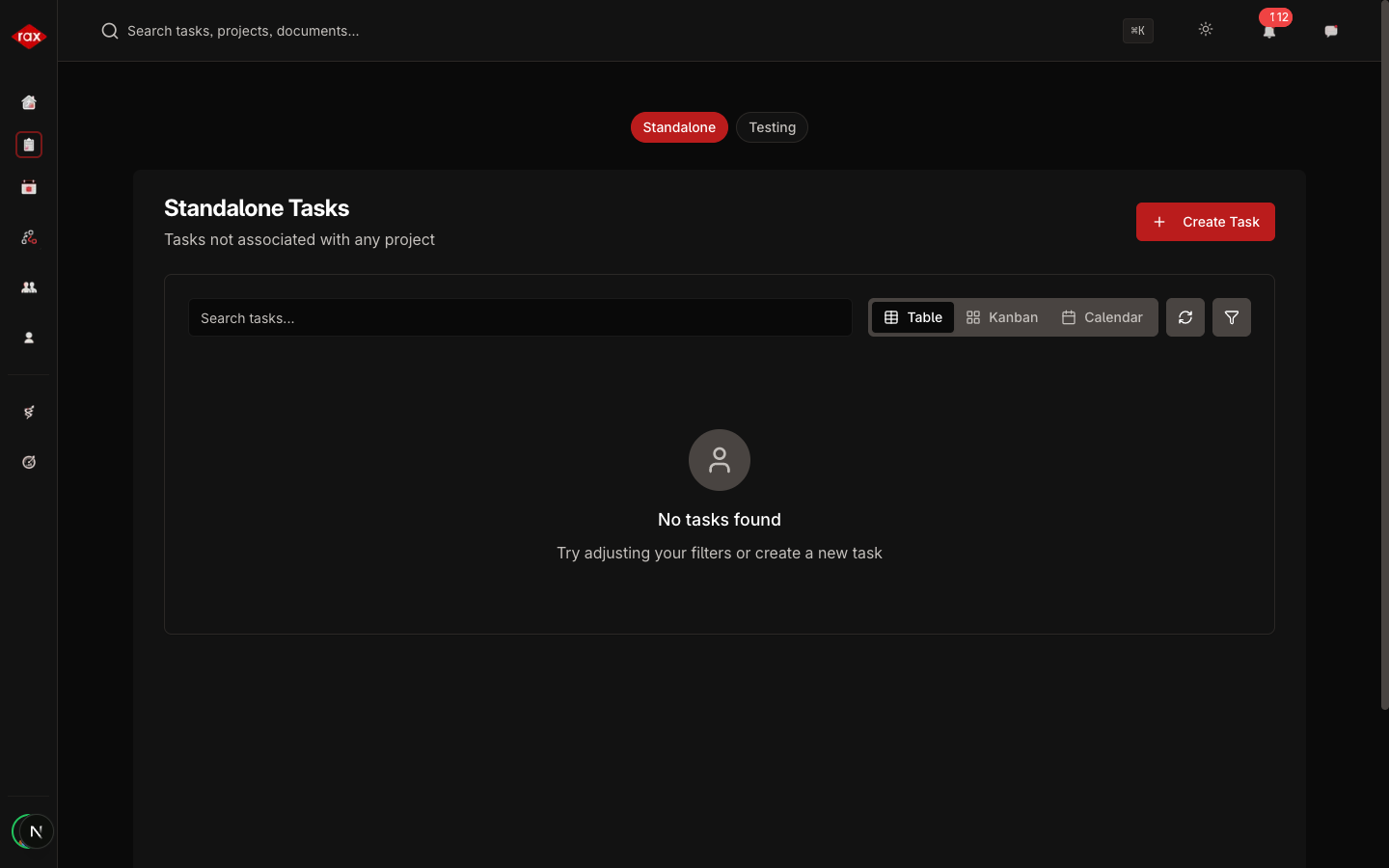
- Go to Tasks in the sidebar
- Click the Create Task button
- Fill in the task details:
| Field | Required | Description |
|---|---|---|
| Title | Yes | A clear, descriptive name for the task |
| Description | No | Detailed explanation of what needs to be done |
| Project | Depends | Select a project (not needed for standalone tasks) |
| Priority | Yes | Critical, High, Medium, or Low |
| Assigned Developer | No | The person who will do the work |
| Assigned Tester | No | The person who will test the work |
| Start Date | No | When work should begin |
| Due Date | No | When the task should be completed |
- Click Create to save the task
Assigning Tasks
When creating a task, you can assign a developer and a tester:
- Developer — Responsible for completing the work
- Tester — Responsible for verifying the work meets requirements
You can also assign or reassign people after the task is created by opening the task detail view.
If you're not sure who to assign, create the task without an assignee. The lead can assign it later.
Task Attachments
You can upload files to a task:
- Open the task detail view
- Scroll to the Attachments section
- Click Upload or drag and drop files
- Files are available to everyone with access to the task
Raising Issues
If you discover a problem while working on a task, you can raise an issue:
- Open the task detail view
- Click Raise Issue
- Describe the issue
- The issue will be flagged for the lead to review
This is useful for reporting bugs found during development or testing.