Creating Projects
This documentation is actively maintained. Features described here may change as the platform evolves. Last reviewed: February 2, 2026.
Only Administrators can create projects. The creation process uses a step-by-step wizard that guides you through all the details.
Your Role on This Page
- Admin
- Department Lead
- Team Lead
- Member
As an Admin, you have access to the full project creation wizard. You can create projects or proposals, allocate budgets, assign teams, define milestones, and upload documents.
As a Department Lead, you cannot create projects. Only administrators have access to the project creation wizard.
As a Team Lead, you cannot create projects. Only administrators have access to the project creation wizard.
As a Member, you cannot create projects. Only administrators have access to the project creation wizard.
Project Creation Wizard
Step 1: Project Type
Choose what you're creating:
- Project — A fully approved, active project
- Proposal — A project proposal that needs approval first
Step 2: Basic Information
Fill in the project details:
| Field | Description |
|---|---|
| Project Name | A descriptive name for the project |
| Project Code | A short unique code (e.g., "RAX-001") |
| Description | What the project is about |
| Start Date | When the project begins |
| End Date | Expected completion date |
| Total Budget | Overall project budget |
Step 3: Team Allocation
Assign teams to the project and distribute the budget:
- Select departments and teams that will work on the project
- Allocate a portion of the budget to each team
- The budget percentages must add up to 100%
You can allocate multiple teams from different departments to a single project. Each team gets its own budget allocation.
Step 4: Milestones
Define key milestones for the project:
- Click Add Milestone
- Enter the milestone name and target date
- Add a description of what the milestone includes
- Repeat for all planned milestones
Step 5: Documents
Upload any initial project documents:
- Upload project-level documents (visible to all teams)
- Upload team-specific documents (visible only to that team)
- Supported formats include PDF, Word, Excel, and images
Click Create Project to finalize.
Saving as Draft
If you're not ready to finalize the project:
- The wizard auto-saves your progress as a draft
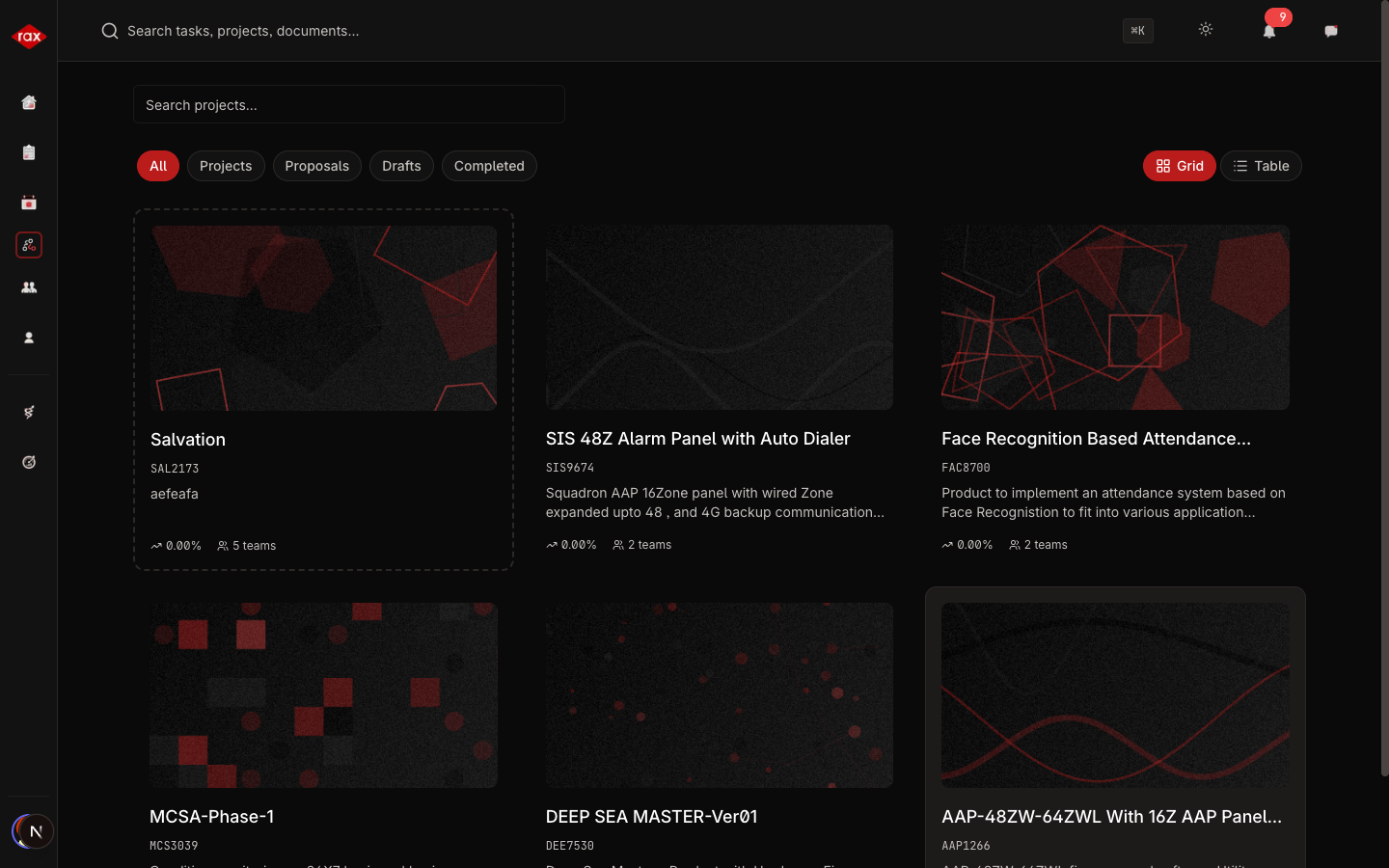
- You can return to the draft later from the Drafts filter on the Projects page
- Complete the remaining steps when you're ready
After Creation
Once a project is created:
- It appears in the Projects list for all assigned team members
- Leads can start creating tasks within the project
- Team members can view the project details and documents