Invoices
This documentation is actively maintained. Features described here may change as the platform evolves. Last reviewed: February 2025.
Invoices are billing documents sent to clients for payment. They support PDF generation, email delivery, payment reminders, and payment tracking.
Screenshot
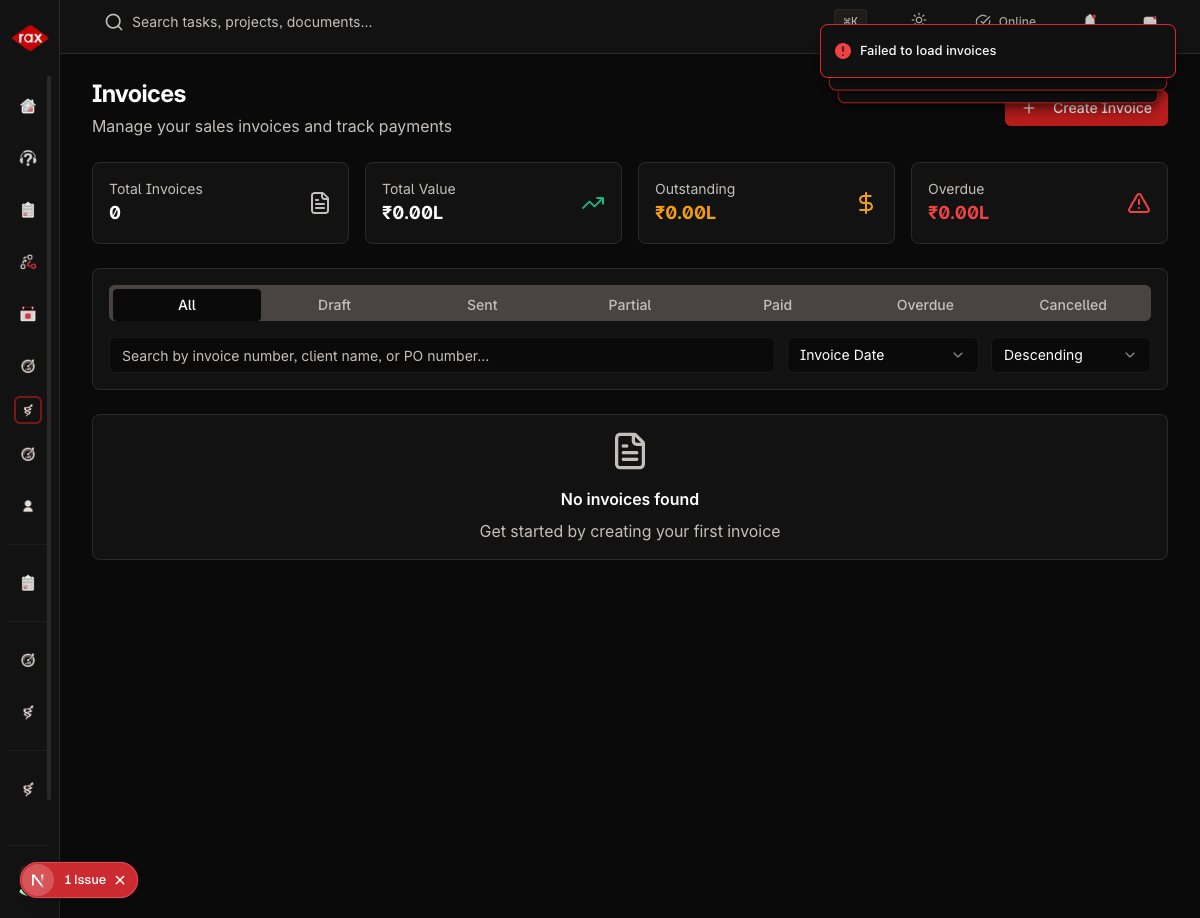
Viewing Invoices
- Go to Sales > Invoices
- See all invoices with status, client, amount, due date
- Filter by status: Draft, Sent, Paid, Partially Paid, Overdue, Cancelled
- Click an invoice to view details
Screenshots for this page will be added once the Production app pages are restored. The app is currently undergoing a codebase optimization.
Invoice Statuses
| Status | Description |
|---|---|
| Draft | Being prepared |
| Sent | Sent to the client |
| Partially Paid | Some payment received |
| Paid | Fully paid |
| Overdue | Past due date, not fully paid |
| Cancelled | Voided invoice |
Creating an Invoice
- Go to Sales > Invoices > New Invoice
- Fill in the details:
| Field | Description |
|---|---|
| Client | Select the client |
| Invoice Date | Issue date |
| Due Date | Payment deadline |
| Subject | Invoice reference or description |
| Notes | Payment terms or additional info |
Line Items
Add line items with description, quantity, unit price, tax, and discount — same as quotes. Totals are calculated automatically.
- Click Save to create as draft
Sending Invoices
- Open the invoice
- Click Send
- The invoice PDF is emailed to the client
- Status changes to Sent
Payment Reminders
For unpaid or overdue invoices:
- Open the invoice
- Click Send Reminder
- A reminder email is sent to the client
Editing Invoices
- Go to Sales > Invoices > [Invoice] > Edit
- Update line items, dates, or details
- Save changes
Invoices that have already been sent or have payments recorded against them should only be edited with caution. Consider creating a new invoice instead of modifying a sent one.
Payment Tracking
The invoice detail view shows:
- Total amount due
- Payments received (linked from the Payments module)
- Outstanding balance
- Payment history
Set realistic due dates and use the reminder feature for overdue invoices to improve collection rates.