Targets
This documentation is actively maintained. Features described here may change as the platform evolves. Last reviewed: February 2025.
Targets define sales goals for individuals and teams. They track revenue, deal counts, and activity metrics over a specified period.
Screenshot
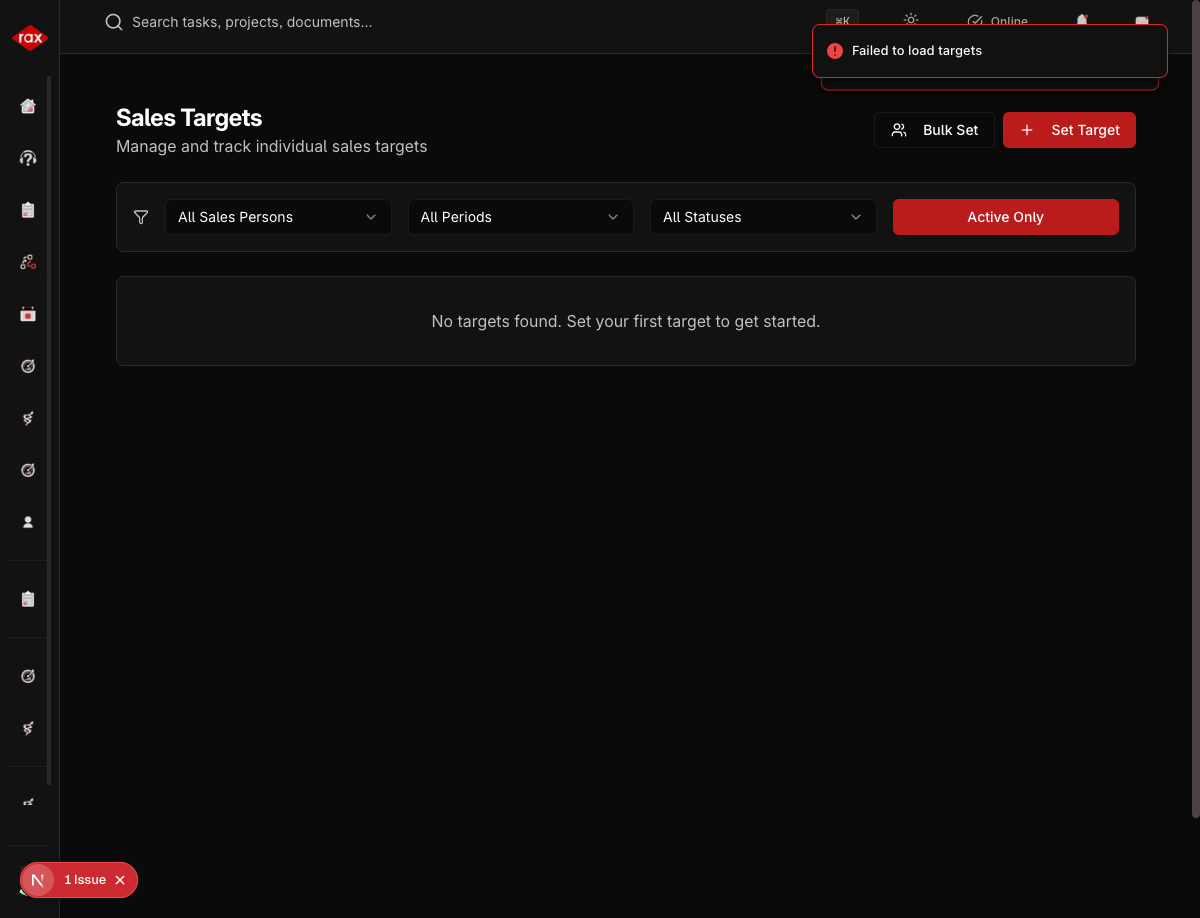
Viewing Targets
My Targets
- Go to Sales > My Targets
- See your active targets with progress bars
- View breakdown of achievement vs. goal
All Targets (Sales Lead / Admin)
- Go to Sales > Targets
- See all targets across the team
- Filter by salesperson, period, or status
- Click a target to view details
Screenshots for this page will be added once the Production app pages are restored. The app is currently undergoing a codebase optimization.
Target Types
| Type | Measures | Example |
|---|---|---|
| Revenue | Total invoiced/collected amount | "Collect AED 500,000 this quarter" |
| Deals | Number of deals closed | "Close 20 deals this month" |
| Activity | Calls made, enquiries created | "Log 50 calls this month" |
Setting Targets
- Go to Sales > Targets > Set Target
- Fill in the details:
| Field | Description |
|---|---|
| Salesperson | Who the target is for |
| Target Type | Revenue, Deals, or Activity |
| Target Value | The goal amount or count |
| Period | Start and end dates |
| Description | Additional context |
- Click Create
Bulk Target Setting
For setting targets for multiple salespeople at once:
- Go to Sales > Targets > Bulk
- Select the salespeople
- Set the target type and value
- Choose the period
- Click Apply to All
This creates individual targets for each selected salesperson with the same parameters.
Progress Tracking
Target progress is calculated automatically based on:
- Revenue targets — Sum of payments collected in the period
- Deal targets — Count of deals marked as won
- Activity targets — Count of relevant activities logged
The progress bar shows percentage completion, and the detail view breaks down how the target is being met.
Target Detail View
Click any target to see:
- Current progress vs. goal
- Daily/weekly progress trend
- Contributing transactions or activities
- Days remaining in the period
Set realistic targets based on historical performance. Use the bulk setting feature at the start of each quarter to efficiently assign targets to the entire team.