Purchase Orders
Work in Progress
This documentation is actively maintained. Features described here may change as the platform evolves. Last reviewed: February 2025.
Purchase Orders (POs) are client-issued documents confirming an order. They bridge the gap between an accepted quote and invoice generation.
Screenshot
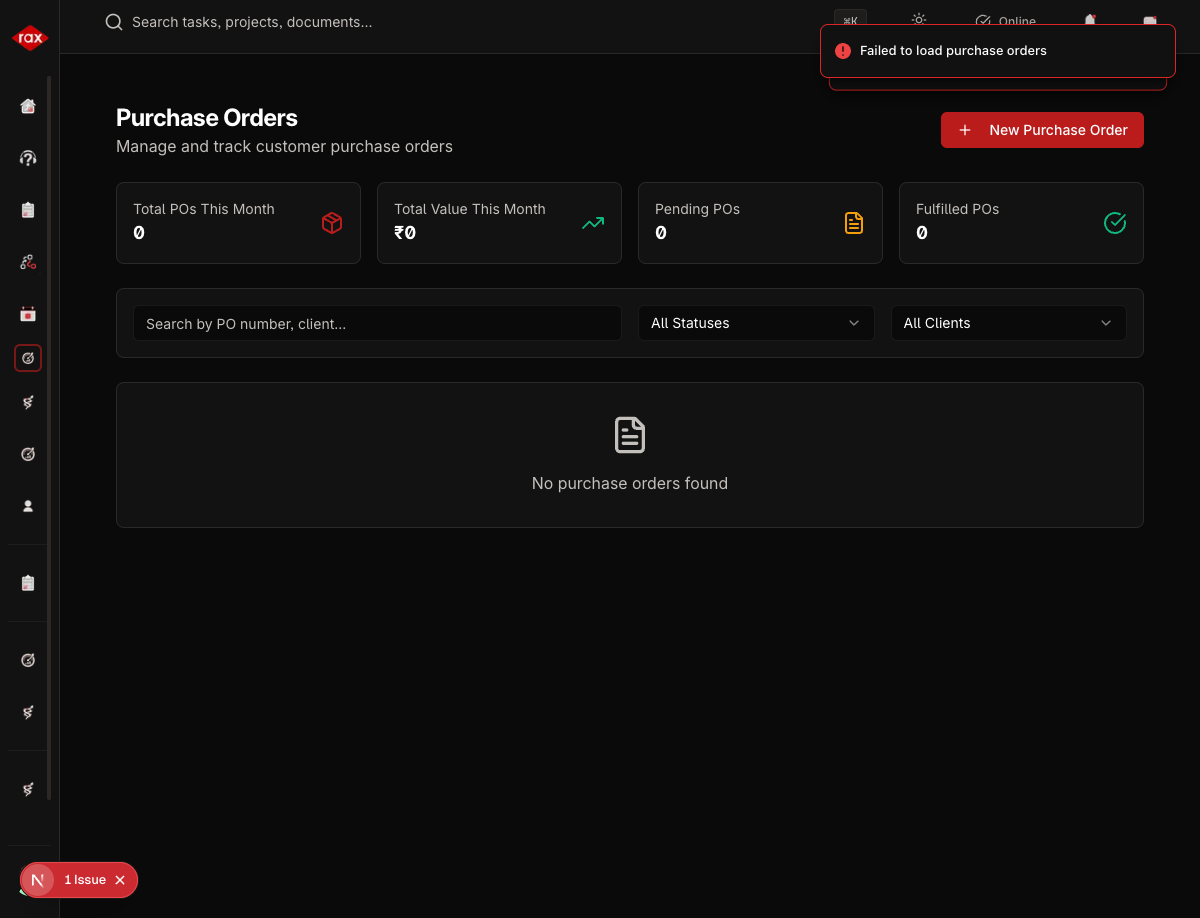
Viewing Purchase Orders
- Go to Sales > Purchase Orders
- See all POs with status, client, amount, and date
- Filter by status or search by PO number
- Click a PO to view details
Screenshots Pending
Screenshots for this page will be added once the Production app pages are restored. The app is currently undergoing a codebase optimization.
PO Statuses
| Status | Description |
|---|---|
| Received | PO received from client |
| Confirmed | PO verified and accepted |
| In Progress | Order being fulfilled |
| Completed | Order delivered |
| Cancelled | PO cancelled |
Creating a Purchase Order
- Go to Sales > Purchase Orders
- Click New PO
- Fill in the details:
| Field | Description |
|---|---|
| Client | Select the client |
| PO Number | Client's PO reference number |
| PO Date | Date on the PO |
| Expected Delivery | When the client expects delivery |
| Amount | Order value |
| Description | Order details |
- Click Save
Uploading PO Documents
Clients often send POs as PDF or scanned documents:
- Open the PO record
- Click Upload Document
- Select the PO file
- The document is attached to the record
Managing PO Status
Update the PO status as the order progresses:
- Open the PO
- Click the status dropdown
- Select the new status
The status flow is typically: Received → Confirmed → In Progress → Completed
tip
Always upload the original PO document for reference. This helps with reconciliation and dispute resolution.