Events
Work in Progress
This documentation is actively maintained. Features described here may change as the platform evolves. Last reviewed: February 2, 2026.
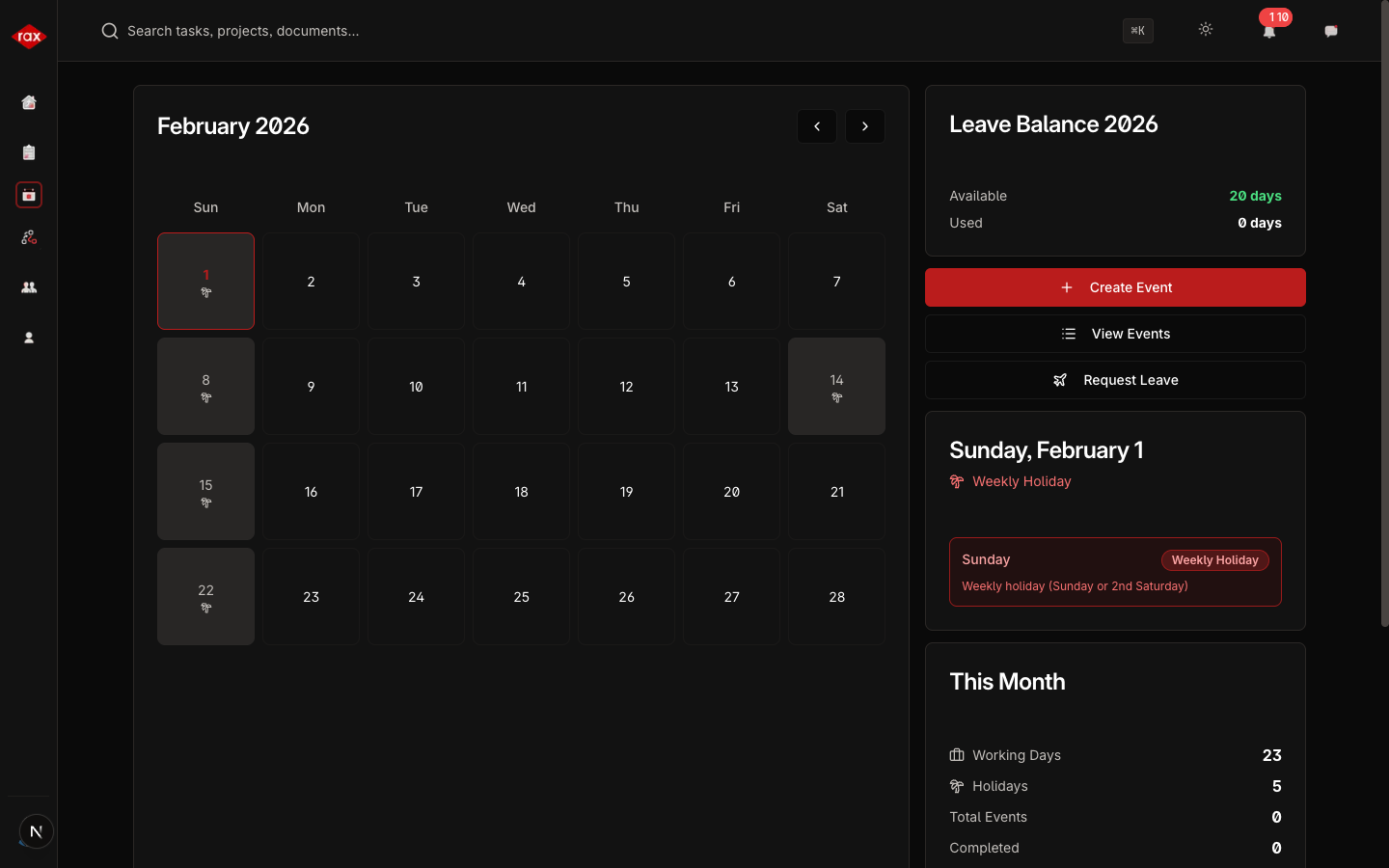
Events are scheduled activities like meetings, deadlines, and team activities. All users can create events.
Creating an Event
- Click on a day in the calendar, or click the Create Event button
- Fill in the event details:
| Field | Description |
|---|---|
| Title | Name of the event |
| Description | Details about the event |
| Date | When the event takes place |
| Start Time | When the event begins |
| End Time | When the event ends |
| Scope | Who can see it: Personal, Team, Department, or Company |
| Participants | Specific users or teams to invite |
- Click Create
Event Scope
The scope determines who can see the event:
| Scope | Visible To |
|---|---|
| Personal | Only you |
| Team | Everyone on your team |
| Department | Everyone in your department |
| Company | Everyone in the organization |
Event Statuses
| Status | Meaning |
|---|---|
| Scheduled | Event is planned for the future |
| In Progress | Event is happening now |
| Completed | Event has ended |
| Cancelled | Event was cancelled |
Editing an Event
Only the event creator and administrators can edit events:
- Click on the event in the calendar
- Click Edit
- Update the details
- Click Save
Viewing Events
Click any day on the calendar to see all events for that date. Each event shows:
- Event title and time
- Description
- Participants
- Status
tip
When you create a team or company event, all relevant members receive a notification about the upcoming event.