Leave Management
This documentation is actively maintained. Features described here may change as the platform evolves. Last reviewed: February 2, 2026.
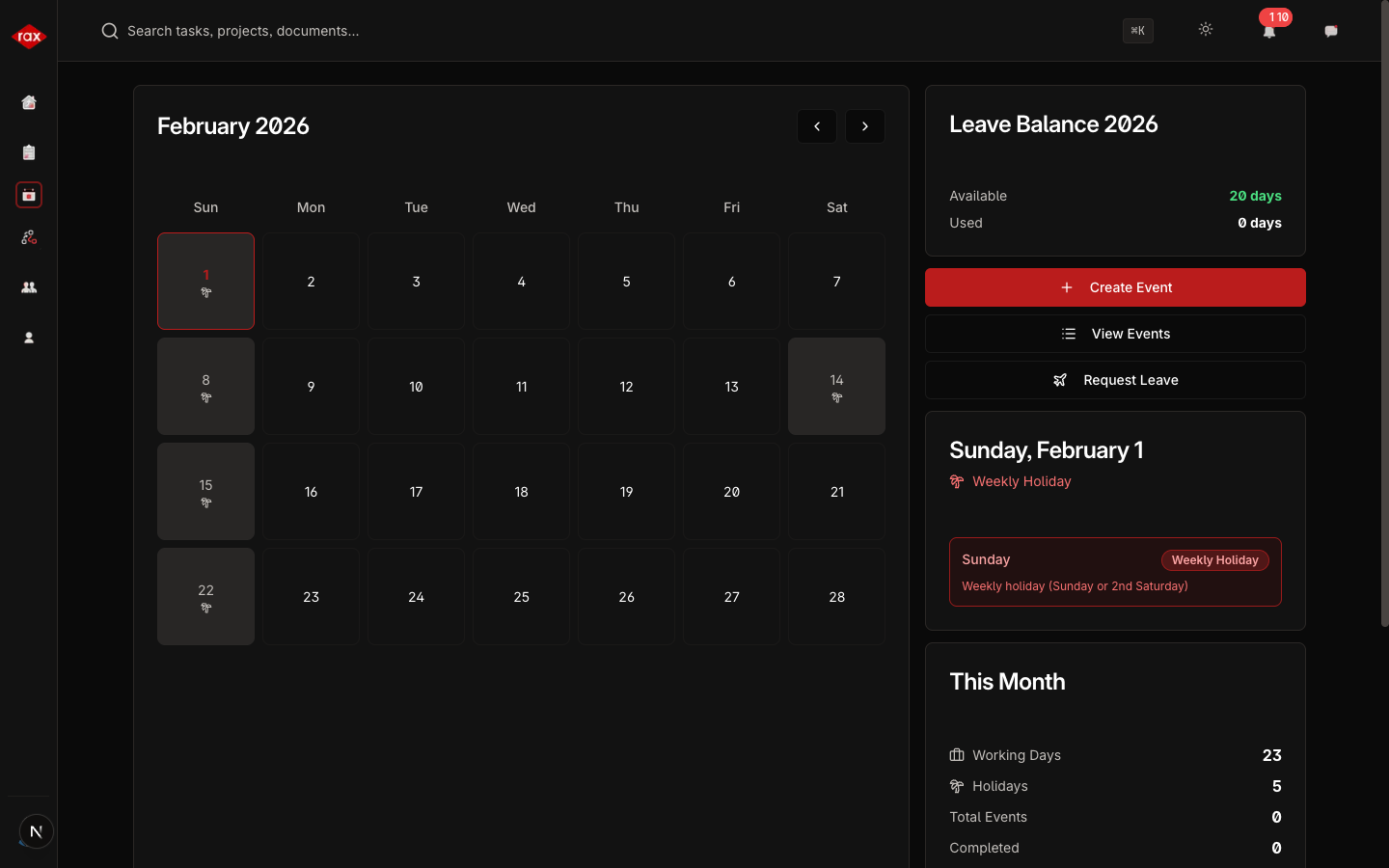
The leave management system lets you request time off and tracks your leave balance automatically. Administrators review and approve leave requests.
Requesting Leave
- Go to the Calendar page
- Click Request Leave
- Fill in the details:
| Field | Description |
|---|---|
| Leave Type | Casual, Sick, Annual, or other available types |
| Start Date | First day of leave |
| End Date | Last day of leave |
| Reason | Why you're requesting leave |
- Click Submit
Your request will be sent to an administrator for approval.
Leave Statuses
| Status | Meaning |
|---|---|
| Pending | Waiting for admin approval |
| Approved | Leave has been approved — these days show on your calendar |
| Rejected | Leave was not approved |
Leave Balance
Your leave balance is shown on the Calendar page:
- Available — Days remaining that you can take
- Used — Days you've already taken this year
- Pending — Days in pending requests (not yet approved)
Leave balances are calculated automatically based on your leave type allowances. Check your balance before submitting a request.
Approving Leave (Admin Only)
Administrators see pending leave requests on their Dashboard:
- Go to the Dashboard
- Find the Pending Leave Requests section
- Click on a request to review it
- Choose Approve or Reject
- The requester will be notified of the decision
Leave Types
The available leave types are configured by your organization. Common types include:
| Type | Description |
|---|---|
| Casual Leave | General time off for personal reasons |
| Sick Leave | Time off due to illness |
| Annual Leave | Planned vacation time |
Plan your leave in advance to ensure smooth team operations. Check the calendar for team events before requesting time off.